 |
 |
|
 |
||
 |
||
 |
||
 |
RESOURCES WIRELESS HOTFIX |
 |
 |
 |
|
|
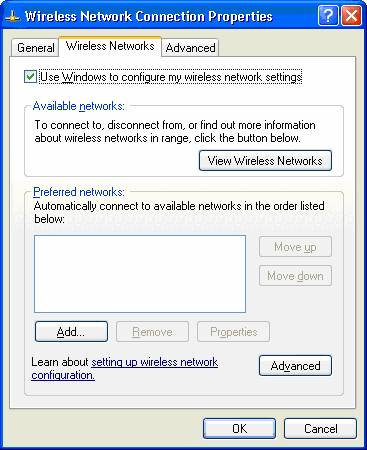
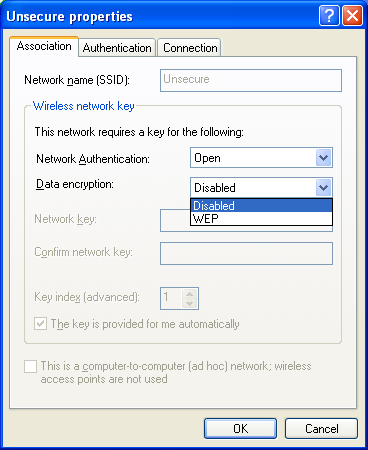
Configuring Windows XP w/ SP2 for Guest or Unsecure Access Follow the instructions to configure your Windows XP computer to the Guest or Unsecure SSID’s.
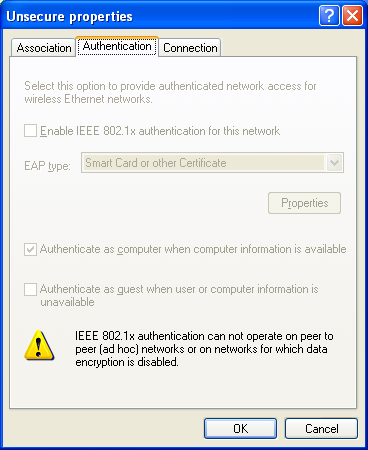
Verify:Click the Authentication tab."IEEE 802.1x authentication" should be unchecked. The screen should look like this:
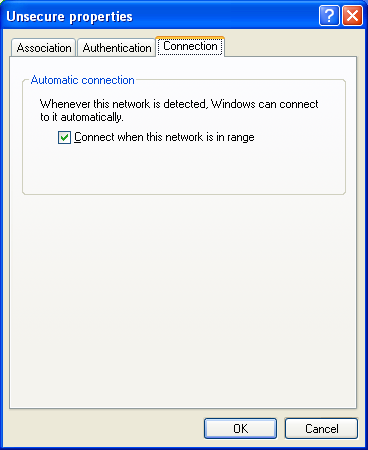
Click the Connection tab:Verify "Connect when this network is in range" is checked.
Click OK to exit. Joining Guest or Unsecure:Click the wireless network icon in the System Tray and choose Unsecure or Guest. By choosing Unsecure, it is required to register your computer the first time you launch Internet Explorer or any web browser. AD account required for registration. (students, faculty and staff only) Guest has HTTP(S) access only. Registration not required 2005 - Information Resources & Technology |
|
|


| © 2006 Bradley University • 1501 W. Bradley Avenue • Peoria, Illinois 61625 • 309/676-7611 • AccessibilityDisclaimer |